 How-to
How Can You Track Birthdays and Anniversaries Easily?
Last Updated: October 25, 2026
Quick Summary
Track birthdays and anniversaries easily by centralizing all your important dates in one place, whether using your phone's built-in calendar app, a dedicated reminder app, or a centralized platform. This prevents missed celebrations and gives you time to plan something meaningful.
- Set a primary reminder 1 week before each date to allow time for planning without feeling rushed.
- Record the full birth year when entering dates so your calendar app can calculate and display age.
- Share birthday calendars with family members using Google Calendar or Apple Calendar to coordinate celebrations.
- Add notes or context like gift ideas to reminders for instant inspiration when alerts arrive.
- Avoid setting alerts on the day itself, as same-day reminders feel like last-minute scrambles rather than genuine thoughtfulness.
Table of Contents
- Why Tracking Birthdays and Anniversaries Matters
- Choosing the Right Birthday and Anniversary Calendar for Your Needs
- Setting Up a Birthday Reminder App on Your Phone
- How to Enable Birthday Reminders on iPhone
- How to Set Up Birthday Reminders on Android
- Recording Dates and Setting Up Alerts That Work
- Managing Shared Calendars and Coordinating with Family
- Getting Started with LifeKeep for Birthday and Anniversary Tracking
- Frequently Asked Questions
Why Tracking Birthdays and Anniversaries Matters
Forgetting a birthday or anniversary stings. It damages relationships and creates awkward explanations you'd rather avoid. The solution is to track birthdays and anniversaries easily so important dates never get buried under daily chaos.
Most people rely on memory or scattered reminders. A birthday might be in your phone contacts, another in a note, another buried in old emails. When the day arrives, you've missed it. By the time you remember, the moment has passed.
Track birthdays and anniversaries easily by centralizing all your important dates in one place. This prevents missed celebrations and ensures you have time to plan something meaningful.
The real benefit goes beyond avoiding embarrassment. When you know a date is coming, you can prepare thoughtfully. You can buy a gift, write a personal message, or simply send a genuine greeting on time. People notice. They feel valued.
Research on the importance of personal celebrations shows that acknowledging important milestones strengthens social bonds. A system that ensures you never miss these moments is an investment in your relationships.
Choosing the Right Birthday and Anniversary Calendar for Your Needs
Not every system works for every person. Your choice depends on your lifestyle, how many dates you track, and whether you share calendar responsibilities with others.
Paper-based options work well if you like handwriting and prefer a physical reference. A perpetual calendar (one that repeats yearly without dates) lets you reuse the same calendar year after year.
Digital calendars offer more flexibility. Your phone's built-in calendar app (Apple Calendar, Google Calendar) is free and already synced across devices. You can set reminders that alert you days or weeks in advance.
Dedicated birthday reminder apps combine the best of both approaches. They import contacts automatically, send customizable alerts, and often include gift-tracking features.
Spreadsheets offer another option if you prefer organizing data in rows and columns. Tools like Excel or Google Sheets let you create custom categories, sort by month, and add notes.
For busy households juggling multiple commitments, a centralized platform that consolidates birthdays alongside other important dates, appointments, bill payments, medication schedules, eliminates the need to check multiple apps.
Different tracking methods suit different lifestyles and preferences.
| Method | Best For | Key Difference |
|---|---|---|
| Paper-based calendar | Handwriting preference | Reusable yearly, requires manual checking |
| Phone's built-in calendar | Free, synced across devices | Requires manual entry, less prominent display |
| Dedicated reminder app | Busy households | Imports contacts automatically, gift tracking |
| Spreadsheet | Custom organization | Complete format control, manual reminders |
| Centralized platform | Complex responsibilities | Consolidates birthdays with bills and tasks |
Setting Up a Birthday Reminder App on Your Phone
A birthday reminder app simplifies the entire process. Instead of manually entering dates from your contacts, the app does much of the work for you.
Here's what to expect from the setup process:
- Download the app from your phone's app store
- Grant permission to access your contacts (required for importing dates)
- Choose which contacts to include in your birthday calendar
- Set your preferred reminder timing (1 day before, 1 week before, or custom intervals)
- Customize alert sounds or notification styles
- Optionally add photos or notes for each person
The entire setup typically takes 10-15 minutes. Once configured, the app runs in the background and sends notifications automatically.
Privacy and permissions matter here. When you grant an app access to your contacts, you're sharing sensitive personal information. Check the app's privacy policy before proceeding. Reputable apps encrypt your data and don't sell contact information to third parties. If an app's privacy terms are unclear or overly broad, choose a different option.
How to Enable Birthday Reminders on iPhone
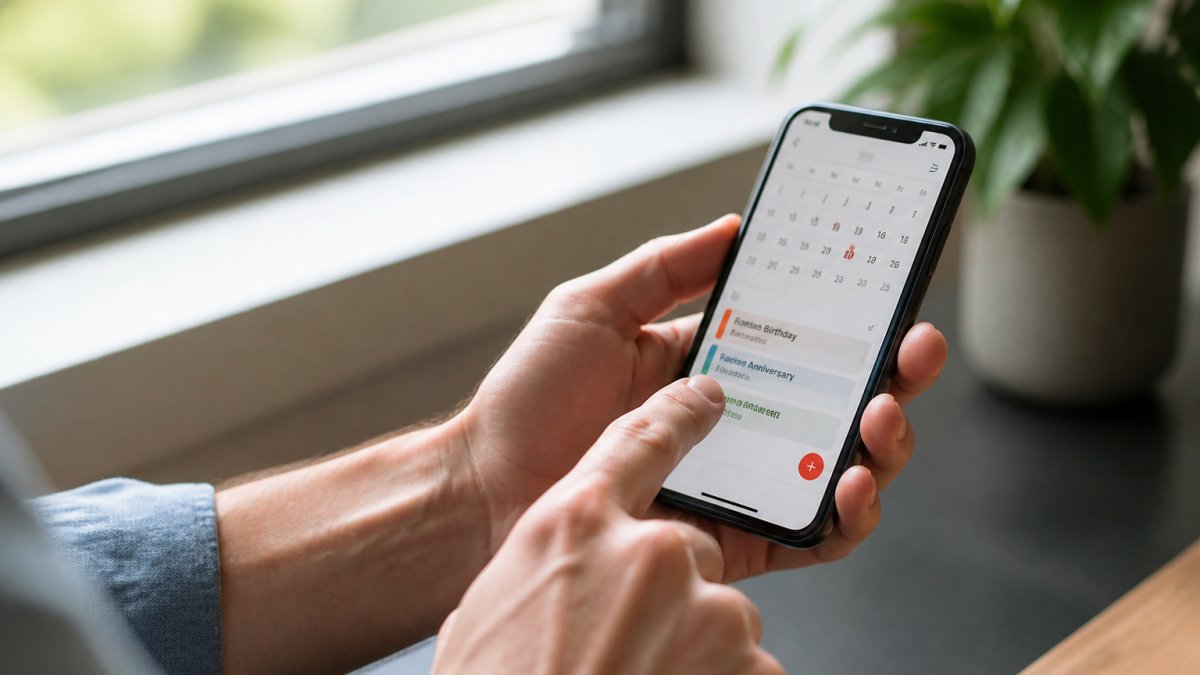
Apple's built-in Calendar app includes a dedicated birthday calendar feature. You don't need a separate app if you're already using iPhone.
Step 1: Open the Calendar app on your iPhone and tap the Calendars tab at the bottom.
Step 2: Look for the Birthdays calendar in your list of calendars. If you don't see it, scroll down and check under "Other Calendars."
Step 3: If the Birthdays calendar isn't visible, tap "Edit" in the lower left corner, then tap "Add Calendar" and select "Birthdays" from the available options.
Step 4: Enable the calendar by ensuring the Birthdays option has a checkmark next to it.
Step 5: Add or edit birthday information by opening Contacts and adding or updating birthdates in each contact's profile.
Step 7: Customize notification style in Settings > Notifications > Calendar to choose whether you want alerts, badges, or sounds.
The advantage of using Apple's native birthday calendar is seamless integration with Siri. You can ask "When is Sarah's birthday?" and Siri will tell you.
How to Set Up Birthday Reminders on Android
Android users have multiple options. Google Calendar, the default calendar app on most Android phones, includes birthday tracking through your Google Contacts.
Step 1: Open Google Contacts on your Android phone (or visit contacts.google.com on a computer).
Step 2: For each contact, add their birthday by tapping the contact, selecting "Edit," and filling in the birthday field. Include the birth year if you want age calculations.
Step 3: Open Google Calendar on your phone and tap the Settings menu (three horizontal lines).
Step 4: Scroll down to "Settings" and select "Birthdays."
Step 5: Toggle on "Show birthdays" to display them in your calendar view.
Step 6: Set reminders by opening a birthday event in your calendar, tapping "Edit," and choosing your preferred notification time.
Step 7: Customize notifications in Settings > Apps > Google Calendar > Notifications to adjust alert sounds and styles.
Google Calendar syncs across all your devices when you're signed into your Google account. Any birthday you add in Google Contacts automatically appears in your calendar.
Recording Dates and Setting Up Alerts That Work
The difference between a system that works and one you abandon is reminder timing. Alerts that arrive too late are useless. Alerts that arrive too early get ignored.
Set a primary reminder 1 week before the date. This gives you enough time to plan without feeling rushed.
Add a secondary reminder 1-2 days before if you need extra accountability. This catches you if the first reminder slipped past your attention.
Avoid alerts on the day itself. By then, it's too late to order anything meaningful. A same-day reminder feels like a last-minute scramble, not genuine thoughtfulness.
Record the full year of birth when you enter a date. This allows your calendar app to calculate age and display it alongside the date.
Add notes or context if your app allows it.
For recurring dates beyond birthdays, apply the same principle. Wedding anniversaries, work anniversaries, or the date you met a close friend all deserve advance notice.
Watch out: Setting too many reminders creates alert fatigue. You'll start ignoring notifications if your phone buzzes constantly.
Managing Shared Calendars and Coordinating with Family
Households with multiple adults benefit from shared birthday calendars. When everyone can see upcoming dates, coordination becomes easier.
Google Calendar and Apple Calendar both support shared calendars. You can invite family members to view a birthday calendar, and they'll see all dates on their own devices.
To share a Google Calendar:
- Open Google Calendar and locate your Birthdays calendar
- Click the three dots next to "Birthdays" and select "Settings"
- Scroll to "Share with specific people"
- Enter family members' email addresses and choose their permission level (view only or edit)
- They'll receive an invitation and can add the calendar to their account
To share an Apple Calendar:
- Open the Calendar app and find your birthday calendar
- Tap "Edit" and select the birthday calendar
- Tap "Sharing" and add family members' iCloud email addresses
- Choose whether they can view only or edit the calendar
For households managing complex responsibilities, a centralized platform that combines birthdays with other family tasks, appointments, shared to-do lists, bill reminders, eliminates the need to check multiple apps. LifeKeep allows families to create shared calendars where all household members can see and coordinate around important dates, ensuring no birthday or anniversary is overlooked.
Set clear expectations about who's responsible for each person's celebration. In some families, the primary contact (usually a parent) manages all dates. In others, each person is responsible for their own relationships. Clarity prevents confusion and duplicate efforts.
Consider time zones if your family is spread across different regions. A birthday at 9 AM in New York is already 2 PM in London. Shared calendars can show time zone information to prevent missed greetings.
Getting Started with LifeKeep for Birthday and Anniversary Tracking
LifeKeep consolidates all your important dates, birthdays, anniversaries, and other milestones, into a single, organized dashboard. Instead of juggling multiple apps or scattered reminders, you manage everything in one place.
Why LifeKeep works for birthday and anniversary tracking:
- Centralized management of diverse life tasks alongside birthday reminders
- Simple, unified interface that doesn't require learning complex features
- Customizable reminders that alert you at the right time
- Ability to add notes, gift ideas, or personal context for each date
- Optional shared calendar functionality for coordinating with family members
Getting started is straightforward:
- Create your LifeKeep account and log in
- Add each birthday or anniversary as an event with the full date (including year)
- Set your preferred reminder timing (1 week before, 1 day before, or custom)
- Add optional details like gift ideas, preferred celebration style, or contact information
- Invite family members to your shared calendar if you want coordinated planning
- Let the system send reminders automatically, no more manual checking
LifeKeep's strength lies in its ability to keep birthdays and anniversaries visible without overwhelming you. When you're also managing bills, medication schedules, and other recurring tasks, having everything in one organized space means you're less likely to miss anything that matters.
Studies on digital organization and memory show that external systems reduce cognitive load. When you trust a platform to remind you, you free up mental energy for other priorities.
The challenge isn't remembering that birthdays and anniversaries exist, it's keeping track when your life is full of competing demands. A reliable system ensures these moments don't slip through the cracks. Whether you choose a simple phone calendar, a dedicated app, or a comprehensive platform like LifeKeep, the key is choosing something you'll actually use and maintaining it consistently. Start with one method, track how well it works for you, and adjust as needed.
Frequently Asked Questions
What's the easiest way to track birthdays and anniversaries without forgetting?
Use a dedicated birthday and anniversary calendar or app that syncs across your devices and sends automatic reminders. Record dates as soon as you learn them, set alerts to trigger a week or two before the event, and review upcoming events monthly. Centralized platforms ensure dates stay in one place rather than scattered across email, notes, or memory.
Can I use a birthday reminder app on both iPhone and Android?
Yes. iPhone users can enable birthday reminders through the Contacts app or Calendar app, while Android users can use the native Calendar app or Google Contacts. Many third-party apps work on both platforms. Choose an app that syncs across devices so your dates remain accessible whether you switch phones or use a tablet.
How far in advance should I set birthday reminders?
Set reminders 1-2 weeks before the event for casual acknowledgments, and 3-4 weeks ahead if you need time to order gifts or plan celebrations. Some people prefer daily reminders on the day itself. Test different timing to see what works for your schedule and gives you enough notice to act without feeling rushed.
How do I handle recurring dates like leap days or dates that change when relationships end?
Most calendar apps let you mark events as annual or recurring. For leap day birthdays, set the reminder on February 28 in non-leap years or manually adjust it each year. If a relationship changes, edit or delete the event rather than leaving outdated dates in your calendar.